

Respondus Monitor  Cengage MindTap
MindTap integrates seamlessly with the Respondus Monitor proctoring system. Respondus Monitor analyzes webcam video, screen recordings, and other data during online exams to ensure academic integrity.
Get started with MindTap and Respondus Monitor by using the information below.
Instructor Settings
To use Respondus Monitor with a MindTap activity: Sign into your class as an instructor. Go to the activity list and navigate to the “Activity Settings” option for the desired activity. Select “LockDown Browser and Respondus Monitor” from the Academic Integrity dropdown.
For more Respondus Monitor settings (including screen recording, second camera requirement, and other options), navigate to the Respondus Monitor Dashboard. The dashboard will be in a different location depending on the version of MIndTap you are using. For some, a link to the dashboard will appear in the same menu as the settings link. For others, the dashboard can be found via a button in the gradebook area. The Respondus Monitor Dashboard is also where to find proctoring results after students have completed the activity.
Note: If the Respondus Monitor option doesn't appear in the Academic Integrity dropdown, it means your MindTap Admin hasn’t yet set up the integration (explained in the next section).
Administrator Setup
This setup only needs to be done once, and then instructors across the institution will have Respondus Monitor available to them.
The MindTap administrator for your institution should log in with a MindTap instructor account. Then select “Course Settings” from the user menu. Next, select the Academic Integrity option.
In the Academic Integrity area, under “Respondus Monitor Access” select the “Link Account” button.
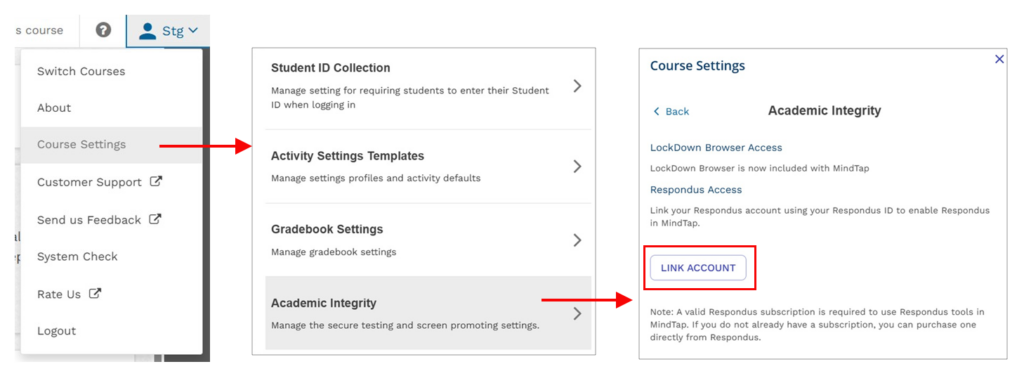
Next, select the license type. Institutions may link to their existing Respondus Monitor license, or choose Student Payment licensing. More about these options below.
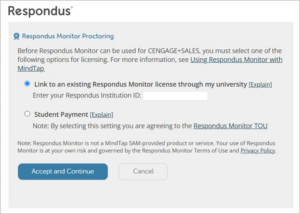
Select “Accept and Continue”.
Licensing Options
Two licensing options for Respondus Monitor are available for MindTap courses:
Option 1: Link to your institution's existing Respondus Monitor license
To link MindTap courses to your institution’s Respondus Monitor license, enter the Respondus Institution ID. To find the institution ID, log in to the Respondus Administrator Area with your Respondus Admin account. Once logged in, the institution ID can be found in the top left corner.
Option 2: Student Purchase
Alternatively, the “student purchase” option provides students unlimited use of Respondus Monitor within one MindTap course. The total cost is $10 and can be purchased by credit card, debit card or PayPal. Students are prompted for payment the first time they encounter a test in the course that requires Respondus Monitor. (A practice exam is highly recommended so students can complete the purchase step and familiarize themselves with the proctoring system.)
Frequently Asked Questions
How do I know if my institution has a Respondus Monitor license?
Around 1,500 universities use Respondus Monitor for exam proctoring. The administrator of your institution’s LMS (Canvas, Blackboard, Brightspace, Moodle, etc.) will know if your institution has a license for Respondus Monitor. You can also find out by sending an email to [email protected].
What devices are supported?
Respondus Monitor for MindTap works with Windows, macOS, Chromebook (coming soon), and iPad (coming soon).
Does Respondus Monitor meet accessibility guidelines?
Respondus Monitor is a web application built on LockDown Browser technology. When students take a MindTap exam with Respondus Monitor, they complete a startup sequence that includes a webcam check and any other requirements set by the instructor. MindTap is responsible for ensuring its own exam content is accessible, and our compliance testing does not cover tools or content within MindTap.
For more information about Respondus Monitor's accessibility and to view our VPAT (Voluntary Product Accessibility Template), please visit Accessibility & Respondus Monitor.
Where do students get technical support?
If technical assistance is needed with Respondus Monitor, 24/7 Live Chat support is available to students from within the application itself. Alternatively, go to respondus.com/support to open a ticket with Respondus Support.
If technical assistance is needed with LockDown Browser (i.e., installing, launching, or updating the browser), please reach out to MindTap support.
Where can I learn more?
Respondus offers periodic training webinars on how to use Respondus Monitor with MindTap. Register here or email our training team to find out more.
What do students need to install?
Students must download and install MindTap’s version of LockDown Browser on their device (see the FAQ above for supported devices). They will be prompted to install it when they begin their first test that requires LockDown Browser.
This version of LockDown Browser is separate from the version your institution may use within a learning management system (LMS), such as Canvas, Blackboard, Brightspace, or Moodle. If students take tests in both MindTap and the LMS, they will need to install both versions of LockDown Browser.
A version that can be installed on managed devices is also available. Please contact MindTap support for assistance.